




Liraspin App
Casino sessions do not always begin and end on the same screen. The Liraspin app supports that reality by giving you a practical entry point on both mobile and desktop devices. Its PWA format keeps the experience connected while letting each device serve the purpose it handles best.



Benefits and Features of the Liraspin App
A casino shortcut is useful only if it does more than replace a bookmark. The Lira Spin PWA keeps the platform easy to reach while preserving the same account activity when you move between devices. It opens in a separate app-style window, so the interface feels more focused than a standard browser tab.
Its main practical benefits include:
- One-tap access from a home screen or desktop
- The full Liraspin game catalog on mobile
- Saved favorites and profile changes carried across supported devices
- Optional push notifications for rewards and active events
The cross-device setup becomes especially useful when a session continues on a different screen. For example, a game added to favorites on a computer will still appear there when you later open Liraspin on your phone. The same applies to other saved account preferences, which remain tied to your profile rather than to one device.
The shortcut also suits brief sessions. Since the icon stays visible alongside your other apps, you can open the casino directly instead of keeping a browser tab active or searching for the site again.
How to Install the Lira Spin App on iOS
On an iPhone or iPad, create the shortcut through Safari:
- Open the Liraspin website in Safari.
- Tap the Share button.
- Scroll down and select “Add to Home Screen.”
- Confirm by tapping “Add.”
The icon will appear on the home screen. You can move it into a folder or place it beside other frequently used apps. Tapping the icon opens Liraspin directly.
Safari controls this process, so the location of the Share and Add buttons may vary slightly between operating system versions. Removing the icon later only deletes the shortcut from that device. It does not close or remove your Lira Spin account.
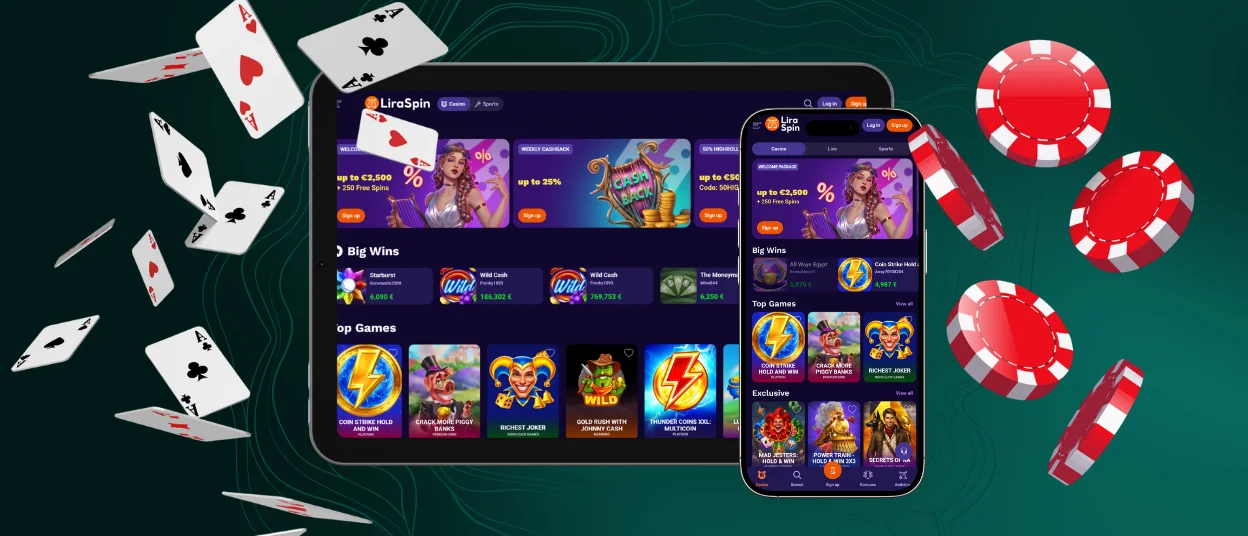
How to Install the Liraspin Casino App on Android
Android users can add Liraspin through Chrome:
- Open the Liraspin website in Chrome.
- Tap the three-dot menu in the address bar.
- Select “Add to Home screen” or the available install option.
- Confirm and place the icon where you want it.
Chrome may use different wording depending on the device and browser version. The resulting icon can appear on the home screen or in the app drawer. Hold and drag it to move it to a more convenient position.
Do You Need a Liraspin APK?
There is no separate Liraspin APK. The PWA serves the same basic purpose by providing a dedicated icon and a direct launch route from an Android home screen.
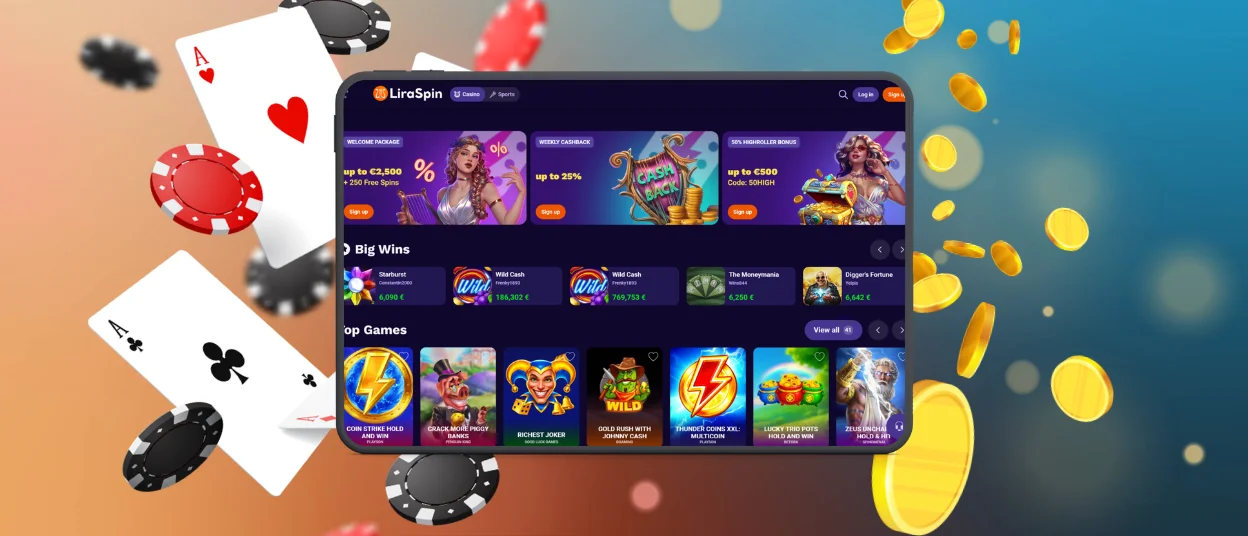
Install Lira Spin on Mac or Windows
You can install our PWA on a Mac or Windows computer through a compatible browser. Open Liraspin and click the install icon near the address bar. Some browsers place this function in the main menu under “Install app” or “Create shortcut.”
Lira Spin then opens in a separate window, without extra tabs or browser controls around the interface. You can keep the shortcut on your desktop or place it in the taskbar, Dock, or Start menu. We recommend the desktop format when screen size and physical controls matter more than portability.
Mobile and desktop access the same platform, but they suit different playing habits. The comparison below shows where each option has a practical advantage.
| What You’re Doing | Desktop | Liraspin PWA on Mobile | Which One Fits Better |
| Quick 10-minute session | The desktop shortcut provides direct access when you already sit at the computer. | Your phone stays close at hand, so the home-screen icon makes a short session easier to start. | Mobile usually works better for brief play. |
| Serious three-hour tournament session | A large display, mouse, and permanent power source make extended sessions more comfortable. | The smaller screen limits visible space, while prolonged use may drain the battery and warm the device. | Desktop offers a better setup for long sessions. |
| Playing with an inconsistent connection | A computer can use a stable home or wired network. | A phone can move between Wi-Fi and cellular data, although the game still requires a reliable connection. | Choose the device with the strongest connection. |
Device and Browser Compatibility
Our PWA works on modern Android and iOS devices through current versions of major browsers. On Mac and Windows, the browser decides whether it can install Liraspin as a standalone app. If the install button does not appear, you can still open the casino in a regular browser tab.
An older device does not automatically mean a poor experience. Performance usually depends on the game, the amount of free memory, the browser version, and the quality of the connection. A standard slot places relatively little demand on the hardware, while a live dealer table must process a continuous video stream and may need more power.
You can make an older phone or tablet run more smoothly with a few simple adjustments:
- Close background apps before you open Liraspin.
- Use the latest browser version available for your device.
- If a live stream starts to freeze, switch from Wi-Fi to mobile data or back again.
- A nearly full phone may run more slowly, so clear some space if needed.
- Keep a charger nearby if you plan to play for a while.
These changes will not upgrade the hardware, but they can remove common causes of lag and unnecessary battery drain.
Security Advantages of the Liraspin PWA
Our PWA keeps most of its activity inside the browser, which gives the device an extra layer of control. Liraspin cannot simply open your camera, files, or notifications on its own. The browser asks you first, and you decide what to allow.
You also open Liraspin from the same official web address every time. There is no separate installer to search for, download, or verify, so players avoid the risk of picking up a modified file from an unofficial source.
The connection uses HTTPS, and we update the PWA on our side. As a result, you always open the current version without checking for patches or wondering whether an older build still sits on the device.
Together, these features make the PWA a more controlled way to access our casino: the browser manages permissions, the platform delivers updates, and you stay in charge of what the app can use.
FAQ
Why can’t I see the option to install Liraspin?
The available option depends on your browser and operating system. Some browsers show an install icon near the address bar, while others place “Install app” or “Add to Home Screen” in the main menu. If your browser does not support installation, you can still open Liraspin in a regular tab.
Does the Lira Spin PWA work without an internet connection?
The icon will still be there, but the PWA does not turn Liraspin into an offline casino.
Can I use Liraspin without adding it to my home screen?
Yes. The shortcut is optional — Lira Spin works in the browser as usual. Adding the icon simply saves you from looking up the site each time.


